Unveiling the Power of DDU: Your Guide to a Spotless Graphics Driver Uninstall
In the intricate world of PC hardware and software, graphics drivers play a pivotal role in ensuring smooth performance, stable gameplay, and crisp visual output. However, like any software, they can sometimes cause headaches. Whether you're upgrading your graphics card, troubleshooting persistent issues, or simply performing routine maintenance, a clean slate is often the best approach. This is where
Display Driver Uninstaller (DDU) steps in – a powerful, free utility designed to completely eradicate graphics drivers and their lingering remnants from your system. Forget the standard Windows uninstall; when you need a truly thorough cleanup, DDU is the undisputed champion.
Why a Complete Graphics Driver Uninstall is Crucial
Many users assume that simply uninstalling a graphics driver through the Windows Control Panel or Device Manager is enough. While this method removes the primary driver files, it often leaves behind a trail of "leftovers." These remnants can include registry entries, system folders, hidden files, and portions of the driver store. Why are these leftovers problematic?
- Driver Conflicts: When installing new drivers, especially if switching between GPU manufacturers (e.g., NVIDIA to AMD or vice versa), these old files can clash with the new installation, leading to instability, performance drops, or even system crashes.
- Performance Issues: Corrupted or conflicting driver fragments can degrade gaming performance, cause graphical glitches, or lead to applications failing to launch correctly.
- Installation Failures: New driver installations might fail outright if they detect vestiges of previous, incompatible drivers.
- System Bloat: Over time, accumulated driver debris can unnecessarily consume disk space, contributing to a slower system.
For these reasons, a superficial uninstall simply won't cut it when you're striving for optimal system health and performance. This is precisely the scenario where a robust tool like
DDU becomes indispensable.
What is DDU (Display Driver Uninstaller) and Why Trust It?
DDU, or Display Driver Uninstaller, is a highly effective, community-developed utility specifically engineered to help you completely uninstall graphics card drivers and associated software packages from your system. It supports all major graphics card manufacturers: AMD, NVIDIA, and INTEL.
Unlike the standard Windows uninstall process, DDU delves deeper, targeting and removing all traces of graphics driver installations. This includes:
- Registry Keys: Deep-seated entries that dictate how the drivers interact with your operating system.
- Folders and Files: Directories and individual files that belong to old driver versions, often hidden away in system folders.
- Driver Store: The Windows driver store often retains copies of previously installed drivers, which DDU can effectively purge to prevent future conflicts.
Developed by Wagnard, DDU has earned a sterling reputation in the PC enthusiast and troubleshooting communities due to its reliability and thoroughness. While standard uninstallation methods are generally sufficient for minor updates within the same driver family, DDU is designed for those critical moments when a clean slate is paramount. It’s the go-to tool for ensuring your system is completely free of old driver remnants, preparing it perfectly for a fresh installation. For times when you find standard methods simply aren't enough, learning how to
Solve Driver Uninstall Fails: Use Display Driver Uninstaller is essential.
When Should You Turn to DDU for Driver Removal?
While DDU is a powerful tool, it’s not always necessary for every driver update. Think of it as your heavy-duty cleaner for specific, more challenging situations. Here are the key scenarios where using DDU is highly recommended:
- Switching Graphics Card Brands: This is arguably the most common and crucial use case. If you're upgrading from an NVIDIA GPU to an AMD GPU (or vice-versa), old driver files from the previous brand are almost guaranteed to cause conflicts with the new hardware. DDU ensures a pristine environment for your new card.
- Persistent Driver-Related Issues: Are you experiencing crashes, blue screens of death (BSODs) linked to your graphics driver (e.g., nvlddmkm.sys, atikmdag.sys), graphical artifacts, or performance hiccups even after installing the latest drivers? Corrupted previous installations are a likely culprit. A clean sweep with DDU often resolves these stubborn problems.
- Failed Driver Installations: If a new driver installation repeatedly fails, or if you encounter errors during the process, old driver remnants might be interfering. DDU can clear the path for a successful installation.
- Preparing for a Major Windows Update or Reinstallation: While not strictly mandatory, using DDU before a fresh Windows installation or a major feature update (like moving from Windows 10 to Windows 11) can help prevent potential driver-related issues down the line.
- Selling or Gifting a GPU: Before passing on your old graphics card, using DDU to thoroughly clean its drivers from your system ensures no personal data or settings inadvertently remain associated with your PC.
- General Performance Optimization: Sometimes, even without obvious issues, accumulated driver files can subtly impact performance. A periodic DDU clean can refresh your system and potentially boost efficiency.
If you find yourself in any of these situations, proceeding with a DDU-powered uninstall is a smart move that can save you significant troubleshooting time and frustration.
Step-by-Step: Mastering the DDU Process for Graphics Driver Removal
Using DDU effectively requires careful adherence to a specific procedure to ensure maximum effectiveness and avoid potential issues. Follow these steps meticulously:
Preparation is Key: Before You Begin
Before you even touch DDU, some crucial preparatory steps will make the process smoother and safer.
- Download New Drivers: Always download the latest stable graphics drivers for your specific card (AMD, NVIDIA, or Intel) from the official manufacturer's website. Save them to an easily accessible location, like your desktop, so you don't need internet access later.
- Download DDU: Obtain the latest version of Display Driver Uninstaller from its official website (Wagnardsoft). Extract the downloaded ZIP file to a convenient folder.
- Disconnect from the Internet: Once you've downloaded everything, disable your internet connection (unplug Ethernet, turn off Wi-Fi). This prevents Windows Update from automatically downloading and installing generic drivers during the process, which could interfere.
- Create a System Restore Point (Optional but Recommended): This provides a safety net. If anything goes wrong, you can revert your system to a previous working state. Search "Create a restore point" in Windows and follow the prompts.
Entering Safe Mode: A Vital Step
Running DDU in Safe Mode is critical. In Safe Mode, Windows loads with a minimal set of drivers and services, preventing your graphics drivers from actively running and interfering with DDU's cleaning process.
- Open System Configuration: Press
Win + R, type msconfig, and press Enter.
- Go to Boot Tab: In the System Configuration window, navigate to the "Boot" tab.
- Enable Safe Boot: Under "Boot options," check the "Safe boot" box and ensure "Minimal" is selected.
- Apply and Restart: Click "Apply," then "OK." You'll be prompted to restart your computer. Click "Restart." Your computer will now boot into Safe Mode.
Running DDU: The Cleaning Operation
Once in Safe Mode, you can proceed with the uninstallation.
- Run DDU: Navigate to the folder where you extracted DDU and double-click
Display Driver Uninstaller.exe.
- DDU Options (Optional): The first time you run DDU, it might prompt you with some options or recommendations. Generally, the default settings are fine. Click "Close" or proceed.
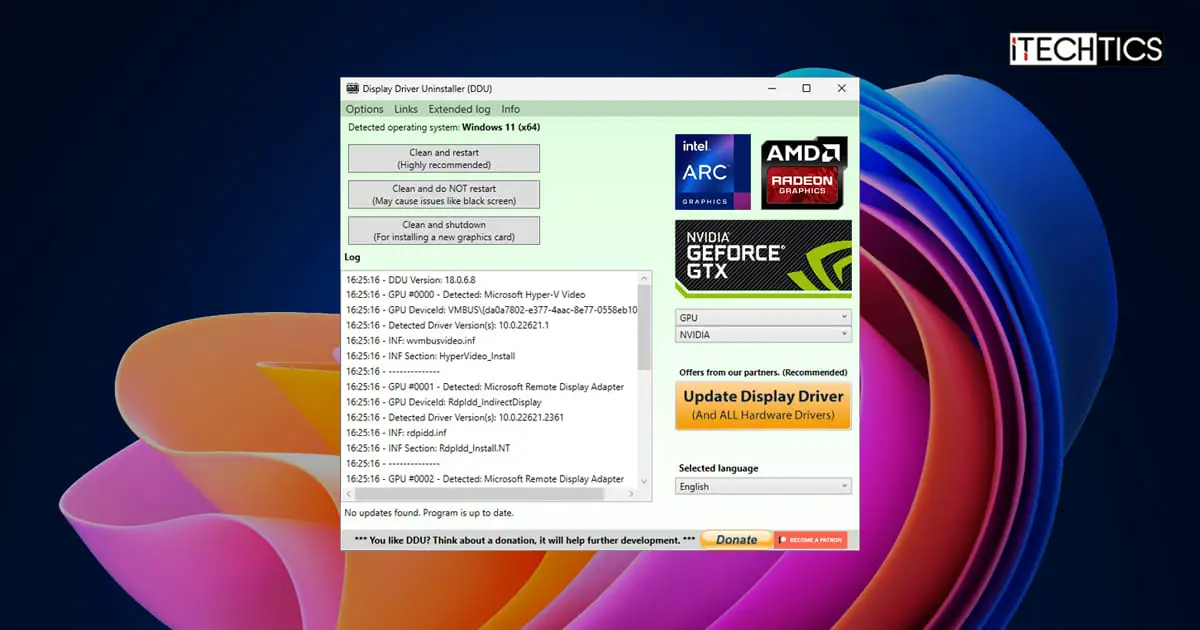
- Select Device Type: On the right-hand side of the DDU window, choose "GPU" from the "Select device type" dropdown menu.
- Select GPU Brand: Below that, select your specific GPU manufacturer (NVIDIA, AMD, or INTEL) from the "Select GPU" dropdown. Even if you're switching brands, select the brand you currently have installed.
- Choose Cleaning Option: You'll see several buttons. For a complete uninstall, the recommended and most commonly used option is "Clean and restart." This will thoroughly remove the drivers and then restart your computer. Avoid "Clean and DO NOT restart" unless you know exactly why you need it.
- Wait for Completion: DDU will now work its magic. This process can take a few minutes. Do not interrupt it. Your screen might flicker or go black temporarily – this is normal.
Post-DDU: Installing Your New Drivers
After DDU completes its job and restarts your computer, you'll be back in normal Windows (since you're restarting, Safe Boot should be unchecked now).
- Install New Drivers: With no internet connection, locate the new graphics drivers you downloaded earlier and run the installer. Follow the on-screen prompts.
- Restart (Again): Once the new drivers are installed, the installer will likely prompt you to restart your computer. Do so.
- Reconnect to the Internet: After the final restart, you can safely reconnect to the internet.
- Disable Safe Mode (if needed): If you followed the msconfig method for Safe Mode, revisit
msconfig, go to the "Boot" tab, uncheck "Safe boot," and restart to ensure you're booting normally.
Congratulations! You've successfully performed a complete graphics driver uninstall using DDU, ensuring your system is clean and ready for optimal performance. For more insights on keeping your system pristine, explore how to
Clean Your PC: DDU for Thorough Graphics Driver Removal.
Best Practices and Pro Tips for Using DDU
To ensure the smoothest and most effective experience with DDU, keep these best practices in mind:
- Always Download from Official Sources: Only download DDU from Wagnardsoft's official website or a trusted mirror. Avoid third-party sites to prevent malware or outdated versions.
- Run in Safe Mode: This cannot be stressed enough. Running DDU in normal Windows mode is less effective and can lead to instability.
- Disable Internet: Ensure your internet connection is off throughout the entire DDU process and until your new drivers are fully installed. Windows Update is notorious for automatically installing generic drivers that can interfere.
- Have New Drivers Ready: Always download and save your new drivers *before* running DDU. You won't have internet access to download them afterward.
- Create a System Restore Point: This is your ultimate safety net. While DDU is very reliable, having a restore point offers peace of mind.
- Read the DDU Interface: The DDU program itself often provides useful tips and warnings. Pay attention to any messages it displays.
- Consider Other Drivers: While primarily for graphics, DDU also has options to clean audio drivers. If you're troubleshooting audio issues, this can be a valuable feature.
Conclusion
Display Driver Uninstaller (DDU) stands as an indispensable tool for anyone serious about maintaining a clean, stable, and high-performing PC. By going beyond the superficial removal offered by standard Windows methods, DDU ensures that every last trace of old or problematic graphics drivers is eradicated. Whether you're upgrading your GPU, battling persistent driver conflicts, or simply seeking to optimize your system, mastering the use of
DDU is a skill that will save you countless hours of frustration and unlock the full potential of your graphics hardware. Embrace the power of a truly clean driver installation – your PC will thank you for it.